
Configuring your Workspace
August 25, 2026
Professional accounts on doggos.com are called Workspaces. If you're the Administrator of a professional account, you can edit your Workspace's rooms, services, and calendar settings at any time to reflect your most current offerings.
You should update your Workspace anytime there are meaningful changes to your business, for example, when you add new services or change your prices. Updates to services, prices, and rooms are reflected instantly everywhere on the platform. However, updates to your business details such as business name, location, contact information or other identifying information may trigger a review process by Doggos.com.
Reviews can take up to 48 hours. During this time, updates to your Business Details will not be reflected in search results or your public listing, and a "Pending review" badge will be displayed on the Business Details section of the Workspace Settings page. The frequency of your updates do not impact your businesses position in search results or rank on the platform, and you can submit updates to your Business Details as many times as you want.
Note: Only Admin users can edit Workspace settings. If you would like for a team members to be able to edit your Workspace, you will have to change their permissions to Administrator.
To access Workspace Settings, first login to your account and then navigate to Settings → Workspace in the left sidebar. Each section has an Edit button that opens a sheet where you can add rows, set prices, reorder items, and choose what shows publicly on your businesses listing page.
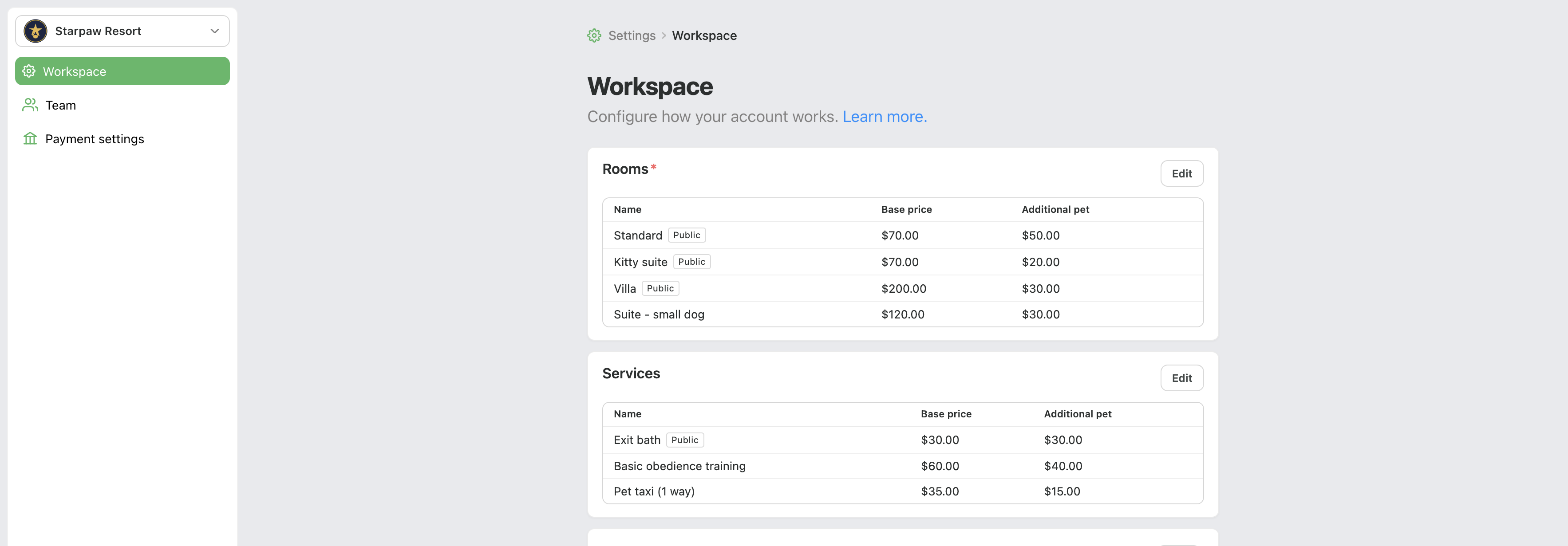
Workspace settings for Starpaw Resort with four rooms and three services.
Rooms
Rooms are any type of accommodation that you sell for overnight stays. Depending on your business, a room could be a kennel, a custom built doggy hotel suite, a kitty condo, or even your entire home.
Every business is different and will have different needs when configuring rooms. For example, if you do in-home pet sitting, you may offer "Kennel" or you may offer "Entire home" as a room opton, whereas if you're a boarding facility you may focus more on the different types of kennel options you have (4x4, 4x8, 5x8, etc.)
Note: We do not recommend using the same name for multiple rooms. For example, if you have 20 kennels and they're all the same, you should only have 1 room called "Kennel", NOT Kennel 1, Kennel 2, etc.
You can have up to 50 rooms in your Workspace. If you need more than 50 rooms, please contact support.
Room settings
When adding a new room, you will have the following options:
- Name — The name of your room is shown on reservation links and on your public listing page if you have marked the room as "Public" (More on this below)
- Base price — The default price for the room without any additional pets, discounts, or special rates.
- Additional pet price — An optional field for additional pets sharing the same room or reservation. If your room does not support more than 1 pet, or if you always charge the same price for additional pets, you can leave this field blank
- Advanced — Add additional settings for your room here, including the ability to mark the room as "Public" and show it on your listing page.
What is "Show publicly"?
Choose which rooms you want to show publicly on your listing page by toggling the "Show publicly" switch in the "Advanced" section of the room row. By default, rooms are not shown publicly and must be marked public to be visible to potential customers.
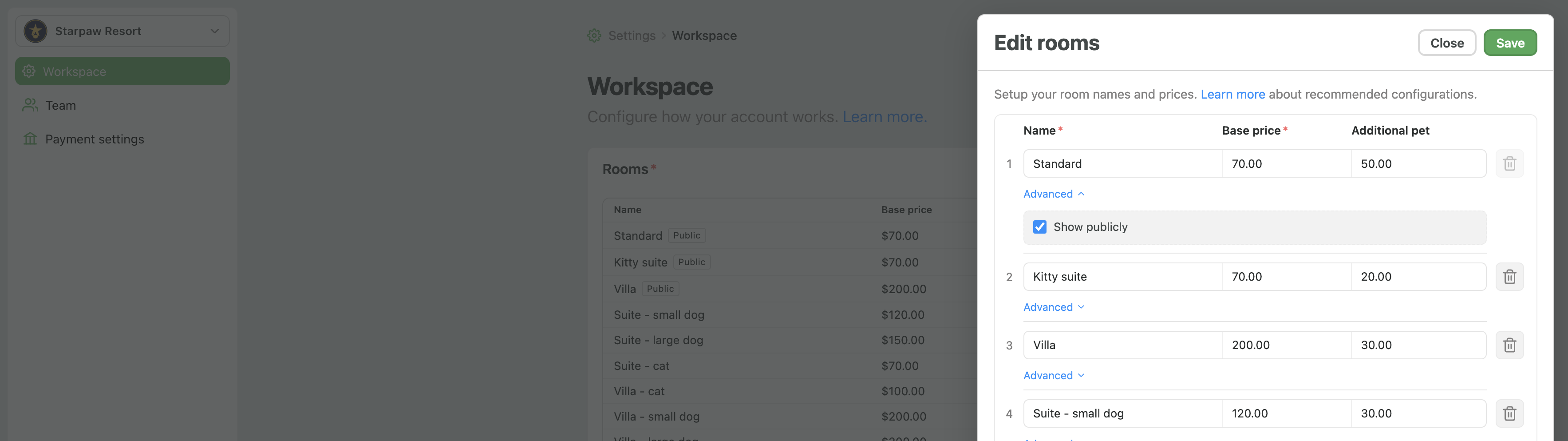
In Edit rooms, open Advanced on a room row to toggle "Show publicly."
Because rooms are not public by default, you can create many types of rooms that reflect custom pricing, services, or other unique options. These rooms will stll be available for your team to book in the calendar and in the "New reservation" flow, but will not be available for customers to book on their own, unless you make them available by toggling the "Show publicly" switch.
Services
Services are add-ons and day offerings (baths, daycare, medication administration, and so on). Like rooms, each service has a name, base price, and optional additional-pet price. You can reorder them the same way—drag by the row number—and use Advanced to control Show publicly.
Public services appear on your listing in the same Services list as public rooms: rooms first, then services, with the same layout. In the calendar, services also show up when creating a reservation so staff can attach add-ons without leaving the booking flow.
Calendar
The Calendar card on Workspace is a shortcut into how availability and day-to-day booking work. For a deeper walkthrough of availability, unavailable days, and creating stays, see Configuring your calendar.
Recommended setup
A simple first-pass configuration works well for most boarding businesses:
- Create one room row per physical accommodation (or per rate tier if you bill by category)
- Mark the rooms you want pet owners to book online as Show publicly
- Add the services you sell most often so staff are not typing ad-hoc line items
- Keep prices in the same format you quote customers (for example
70.00) - Save, then open your public listing to confirm the Services section looks right
Questions?
For help configuring your workspace, login to your account and message @doggos.


